

You need the phone to approve a login. You do not need the subsequent tour of everyone else's lunch. Unfortunately, both activities start on the same rectangle.
To stop checking your phone while working, plan for the times you genuinely need it: name the task, complete it, and put the phone back before opening anything else. For the work in between, reduce unnecessary alerts and give yourself a clear next action on the computer or page in front of you.
A blanket “no phone” rule can be awkward when your job requires authentication, customer calls, messages or testing a mobile product. The useful boundary is between the work you picked the phone up for and the browsing that follows.
Choose one piece of work, with an end you can recognise
“Focus all morning” asks a lot of a morning. Start with a smaller promise: draft the opening paragraph, check the next five invoices, or review one section of a document. Pick an amount of time or a task boundary that fits your role and availability.
Write down what you will do first. “Work on presentation” leaves plenty of room to negotiate. “Write the three points for slide two” gives you somewhere to return after an interruption.
If your job requires rapid responses, protect a short gap between those responsibilities rather than disappearing for an arbitrary productivity interval. This is a way to reduce optional checking, not a reason to miss work you are responsible for.
Decide what still needs to reach you
Before changing settings, make a small exception list. It might contain the authentication app, the colleague covering an incident, a family contact and the phone line you use for customers. Keep necessary health and accessibility functions available too.
Where your work allows it, tell colleagues when you will next check routine messages and which existing channel to use for something urgent. “I’m drafting until 10:30; call for a time-sensitive decision” is clearer than silently hoping everybody understands a status icon.
Do not remove multi-factor authentication to make the phone easier to avoid. If your organisation offers another approved sign-in method, ask its IT team about that option. The inconvenience is a workflow problem, not a reason to weaken the account.
Match the setting to the interruption
First decide whether the problem is an alert pulling you away or opening an app without an alert. Those call for different changes.
- Notifications on iPhone: in Settings → Focus, choose a Focus such as Work and review People and Apps. Apple's notification guide explains how to allow or silence selected contacts and apps. Review any additional exceptions on your device and test the contact route you need.
- Distracting apps on Android: on supported devices, Settings → Digital Wellbeing → Focus mode lets you choose apps to pause. Google's Digital Wellbeing instructions say those apps cannot be used and do not send notifications while paused; schedules and temporary breaks are available. Device steps can vary. Leave required work tools out of the paused group.
- Opening a feed by habit: removing its Home Screen shortcut or using an app restriction adds a separate step. For iPhone's app-access settings, use our version-aware setup guide. A notification setting alone does not tell you what to do after a legitimate phone task.
Check the other screens around you as well. Silencing a phone while the same chat flashes on your laptop may leave the original interruption very much employed.
Give necessary phone use an exit
Keep the phone somewhere you can reach when needed but do not automatically pick it up whenever a page loads. A desk stand, a nearby shelf or a bag can work, depending on your access needs. There is no prize for choosing the most inconvenient location.
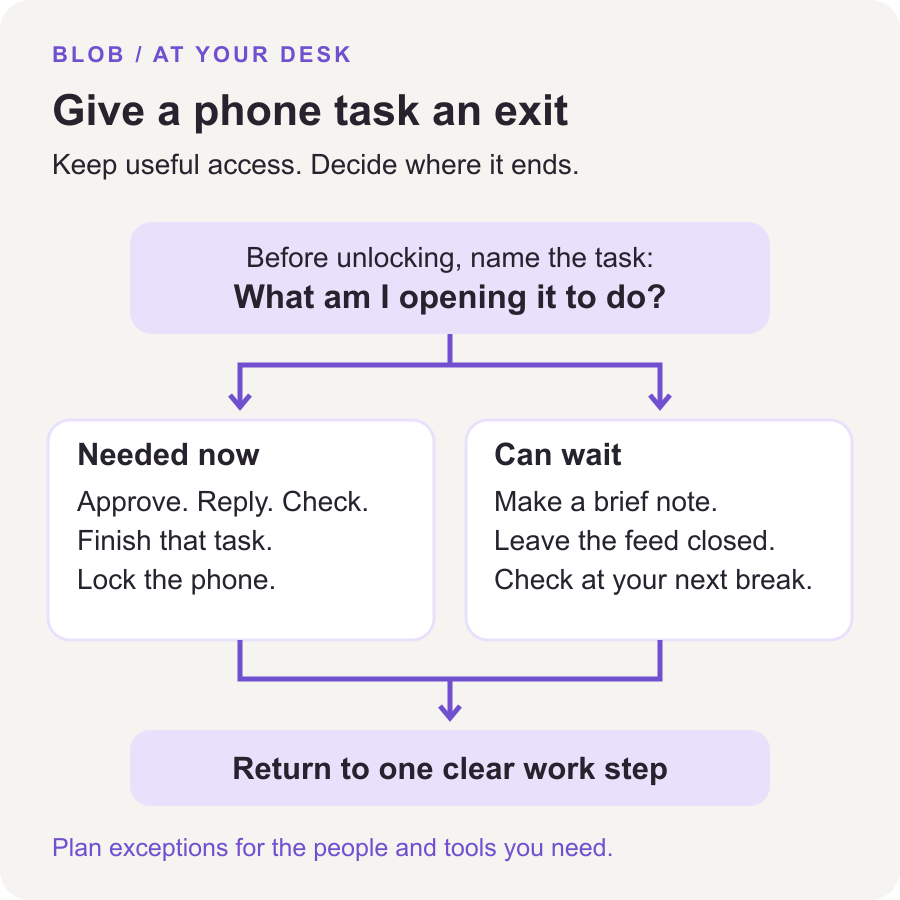
Before unlocking, finish this sentence: “I’m opening it to ___.” Approve the login. Answer the call. Photograph the receipt. When that job is finished, lock the phone and put it back.
For example, while checking an expense report, you might need a receipt stored on your phone. Open the receipt, enter its amount, and return to the next line of the report. You do not need to inspect the news to establish whether the receipt still cost $18.
If your actual work happens inside a social app, the boundary needs to be inside the task: reply to the three customer messages, publish the prepared post, or check the named campaign. Use a short written checklist so that opening the app does not also create a new assignment to browse its entire feed.
When there is no notification, look at the moment before the check
Sometimes the phone appears when the work becomes unclear. You reach a sentence you cannot finish, wait for a file, or realise you need a decision from someone else. Notice that moment without turning it into a character assessment.
Try one of these small responses:
- The next step is unclear: write the question that needs answering, then identify the first thing you can do.
- You are waiting: choose a tiny related task, or take the pause without filling it with a feed.
- You need a break: take an actual break, with a return point, rather than repeatedly pretending the scrolling is part of the assignment.
- You remembered something unrelated: put a brief note on a “later” list. You can decide whether it still matters after the work block.
The list is not a scientific diagnosis of why you check. It is a practical way to try a response that fits the situation. If the automatic opening itself is the difficult part, our autopilot guide goes deeper.
Review the block without grading your entire personality
When you reach the stopping point, ask what happened. Did the required call get through? Did approving a login lead to another app? Was the work too vague to begin? Change that one detail for the next attempt.
A total screen-time number cannot tell you whether a work block went well. You may spend longer on the phone because a customer needed help. For this experiment, the more useful observation is whether an unplanned feed visit interrupted the task you chose.
Blob adds a math problem before selected distracting apps open. If that extra decision suits you, it can be one part of this setup. Keep essential tools accessible, and do not expect an app to resolve a workload or an unclear expectation. See how Blob works before deciding whether you want that kind of interruption.
For a wider look at your phone habits, use the seven-day screen-time reset. For the next work block, a single sentence is enough: “I’m doing this task; these people can reach me; after using the phone for work, I put it back.”
Sources and editorial notes
By Blob, the app's publisher. Device instructions and product wording checked October 29, 2026. The work examples are suggestions, not testimonials or measured productivity results. A NoSurf discussion about phones at desks surfaced the practical objection of needing a phone for authentication. We have not adopted its productivity claims or advice from replies about changing sign-in tools.